Before you start
- A Windows PCWindows 10 or 11, with an x64 processor.
- A compatible Hue BridgePowered on and connected to your router by Ethernet.
- The same local networkYour PC and bridge need to be able to reach each other.
- Your bridge within reachYou’ll press its round link button during pairing.
A Hue Bridge is required. Hue’s own Bluetooth and Matter setups work without one, but not with Mote.
Connect your Hue Bridge
One setup. Your lights, right on your desktop.
Install and open Mote
Install Mote Desktop from the Microsoft Store, then open it from Start or the desktop shortcut it adds. The Free tier includes pairing and control of one saved Hue Bridge.
Find your bridge
Choose Connect to scan your local network. If Mote finds more than one bridge, select the one you want and choose Continue. If it finds none, or the wrong one, choose Enter the bridge’s IP address instead.
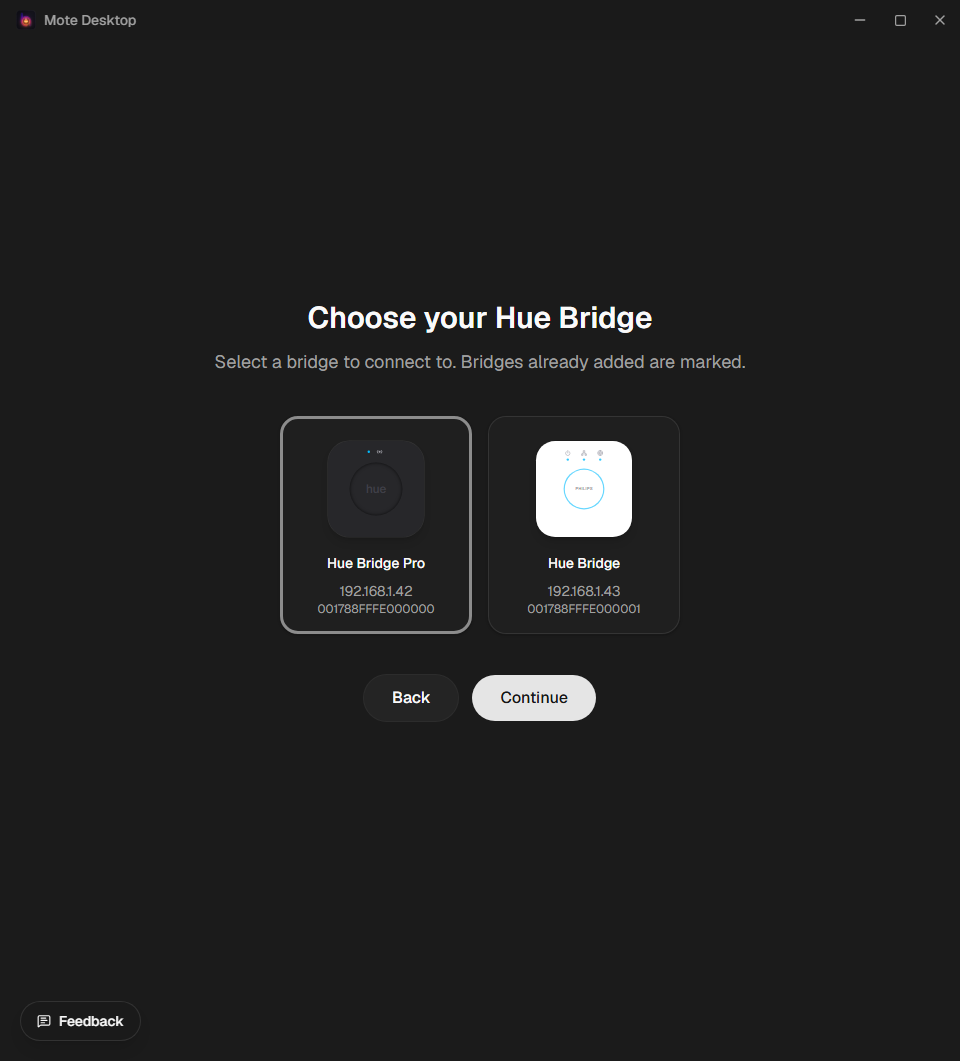
Choose the bridge you want to connect to. Example devices shown. Press the round link button
When Mote asks, press the button on top of your Hue Bridge. Keep Mote open while the bridge authorizes the connection.
Wait for the prompt. Press the bridge button during pairing, so Mote can complete the connection.
Make your first light change
When Mote shows Connected, continue to the dashboard. Your rooms, zones, lights, and scenes come directly from the active bridge.
Try the power or brightness controls. Open a room or zone to find its lights and scenes. Color and white-temperature controls appear where your lights support them.
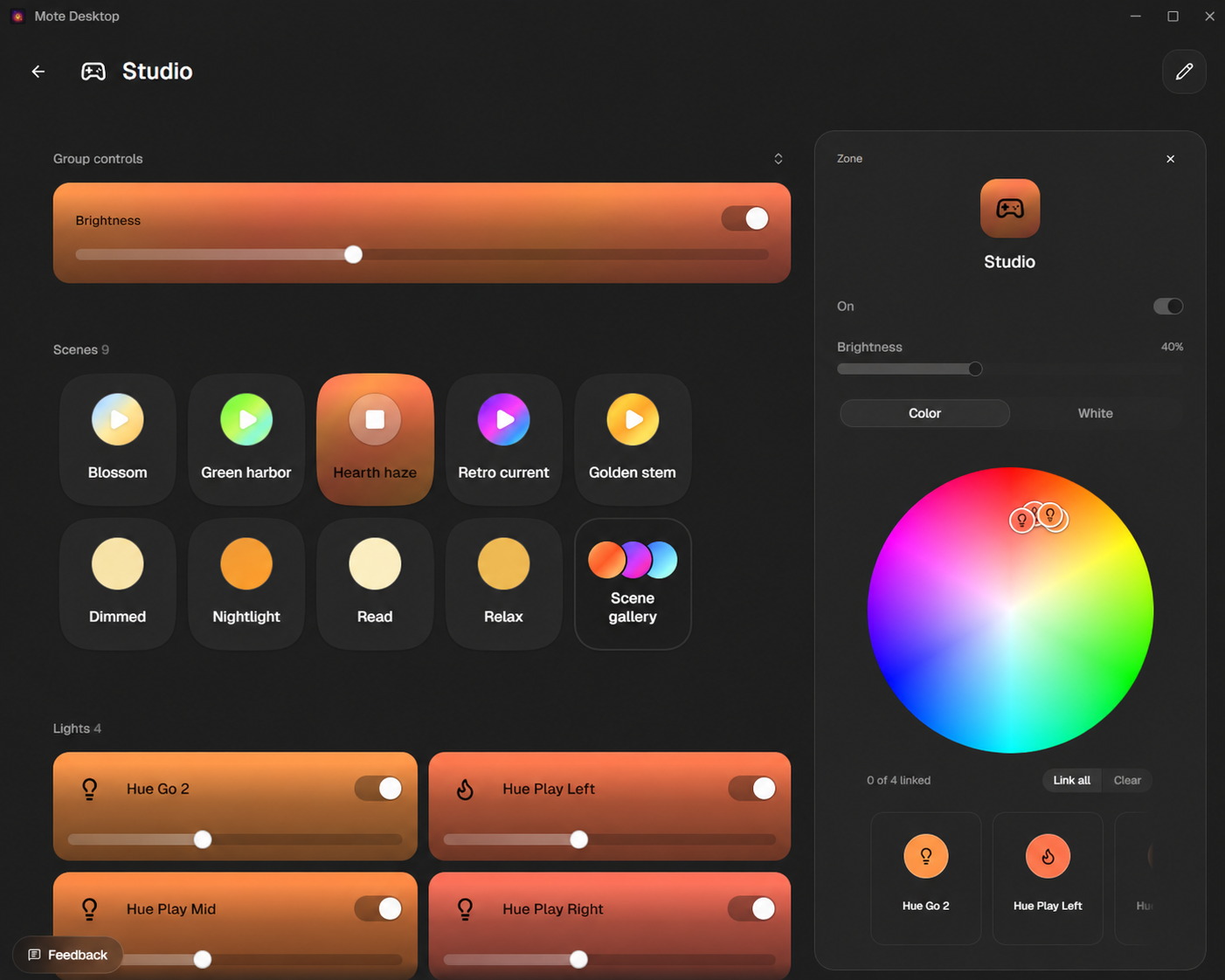
Brightness, scenes, and individual lights, together in the room view. You’re set. Essential Hue control and PC Sync are included in Free, and pairing also starts a free 14-day trial of everything in Mote Pro. Compare Free and Mote Pro for widgets, custom dashboards, automations, and multiple bridges. Mote Pro can save multiple bridges, with one active at a time.


Stuck getting connected?
Start with the issue you’re seeing.
Mote can’t find my bridge
- Check that your bridge is powered and connected to your router by Ethernet.
- Make sure your PC and bridge are on the same local network.
- If a VPN or guest Wi-Fi isolates your PC from local devices, disconnect the VPN temporarily or join your regular home network.
- Check whether firewall rules, router client isolation, or multicast filtering are blocking discovery, then try again.
- Still nothing? Choose Enter the bridge’s IP address instead and type the address shown in the Hue app or your router’s device list.
Pairing times out
Restart the connection flow. Wait for Mote to ask, then press the round link button on the bridge. Leave Mote open until the connection completes.
I only have Bluetooth lights
Mote controls lights through a compatible Hue Bridge on your local network. Hue’s own Bluetooth and Matter setups can run without a Bridge, but they are limited to a handful of nearby lights and cannot provide the scenes, rooms, and PC Sync that Mote is built around.
Still need a hand? Follow the support checklist to send a request.
Leave out application keys, bridge credentials, addresses, and unrelated personal information.
A local connection to your lights.
Core lighting commands travel from your PC to your Hue Bridge over your local network. Mote does not relay them through its publisher, and does not include remote Hue cloud control.
Internet access can still be needed for Microsoft Store installation, licensing, updates, and fallback bridge discovery. Read the privacy policy for the full data-handling details.
Reviewed against the Windows release candidate ·